Getting help from GPT
These notes cover how I organize requests for typography, backgrounds, and chibi layouts. They collect structures that made it easier to communicate what I wanted during my own work.
This is not a definitive guide to image generation. Results vary, and the methods below are working observations and examples. Change the wording and conditions to suit your task.
Typography
Separating the exact text, line breaks, layout, lettering, and decoration limits made the results easier to check than simply supplying a phrase.
What to decide first
- Exact text: Write out precisely what should appear.
- Lines and blocks: Specify line breaks and which words should be larger.
- Priority: Decide whether the text or the accompanying character should be noticed first.
- Lettering: Specify the fill, outline, weight, and acceptable distortion.
- Decorations: Set their quantity or density as well as their type.
- Text preservation: Ask for no spelling changes or extra words.
Basic prompt
View typography prompt
# Typography Priority
* text is the primary focal point
* maintain high legibility
* decorative elements remain secondary

# Text Content
First line: `Welcome`
Second line: `Library`

# Layout
* centered two-line composition
* first line above second line
* clear spacing between lines
* no overlapping decorations

# Letter Style
* white fill
* light green outline
* bold rounded sticker lettering
* clean readable shapes

# Decoration
* idol fan-sign sticker atmosphere
* a few small music notes, sparkles, and hearts
* keep decorations sparse and outside the lettering
* no extra ribbons or decorative frames
* restrained glow and drop shadows

# Background
* transparent background

# Text Preservation
* keep all English text exactly as written
* do not alter spelling
* do not add extra letters or words
Split long titles into visual blocks
Breaking a long sentence into lines and emphasis blocks produced more readable results than treating it as one unit. For example:
View the text-block layout
[ GPT한테      ] [ 짬때리기 ]
[ 비주얼라이즈 ] [          ]
Specify two lines on the left and one large word on the right spanning the height of both lines. Use a base color and one accent color, with sparse decorations outside the letters. The Korean wording is kept here to match the actual result below.

What to adjust after generation
Even when the spelling and line breaks were correct, ribbons, glow, large shadows, or extra icons sometimes appeared. Alongside the decoration types, specify limits such as “sparse,” “outside the lettering,” or “do not expand the overall silhouette too much.”
Strong styling or many colors sometimes turned the letters into decorations themselves. If the text is hard to read, reduce decorations and colors, then check the wording again. A text-preservation instruction is not a guarantee: check the spelling in the final image yourself.
Backgrounds
For a background, separating viewpoint, depth, light, and detail density helped me explain the scene more clearly than a location name alone. This section covers background instructions, without character appearance, clothing, or poses.
Start with a short scene note
First describe the scene briefly in your own language, then expand it into sections if needed. The location and colors below are examples you can replace.
View short background notes
Purpose: background for adding text or an image later
Place: a quiet uphill rural road
Time: early night
Viewpoint: eye-level view along the road
Space: separate foreground, midground, and background; reduce contrast and saturation with distance
Style: modern anime look, flat colors, simple cel shading
Sky: purple near the horizon, darker toward the top
Light: soft ambient sky light, one distant streetlight on the left
Density: sparse surroundings, no clutter in the center
Limits: no extra streetlights, decorative lighting, or strong glow
How to organize the request
| Topic | What to specify |
|---|---|
| Purpose and composition | Whether the landscape is the focus or a backdrop for other elements; which areas should stay open |
| Place and time | Terrain, buildings and object positions, time of day, mood |
| Camera | Eye level, high or low angle, viewing direction, distance, perspective strength |
| Space | Foreground, midground, background; changes in scale, contrast, and saturation with distance |
| Style | Period, linework, flat colors, cel shading, surface detail |
| Lighting | Roles of key and ambient light; number and position of visible artificial lights; limits on extra effects |
| Color | Main and accent colors, value contrast, saturation in the distance |
| Motion | Wind direction and strength; how grass, fabric, and other environmental elements respond |
| Materials | Roughness, matte or glossy finish, and reflections on roads, walls, or water |
| Detail density | Objects to include, areas to leave empty, decorations and details to omit |
Separate two kinds of perspective
Geometric perspective defines the shape of the space: objects getting smaller with distance, a road converging, or buildings lining up.
Atmospheric perspective describes how depth becomes visible through reduced contrast and saturation or light haze. Go beyond “use perspective” and describe how the distance should look.
Be more specific about style and lighting
Add a period, coloring method, shading style, and level of surface detail to anime style. For a flatter result, describe the desired appearance with phrases such as flat coloring, clean cel shading, and simple shadow shapes.
Distinguish one main light from one visible artificial light in the image. If sky light and a streetlight coexist, explain their roles separately. If the lamp count matters, say “exactly one visible artificial light source in the entire scene,” and check the result too.
Background-only prompt
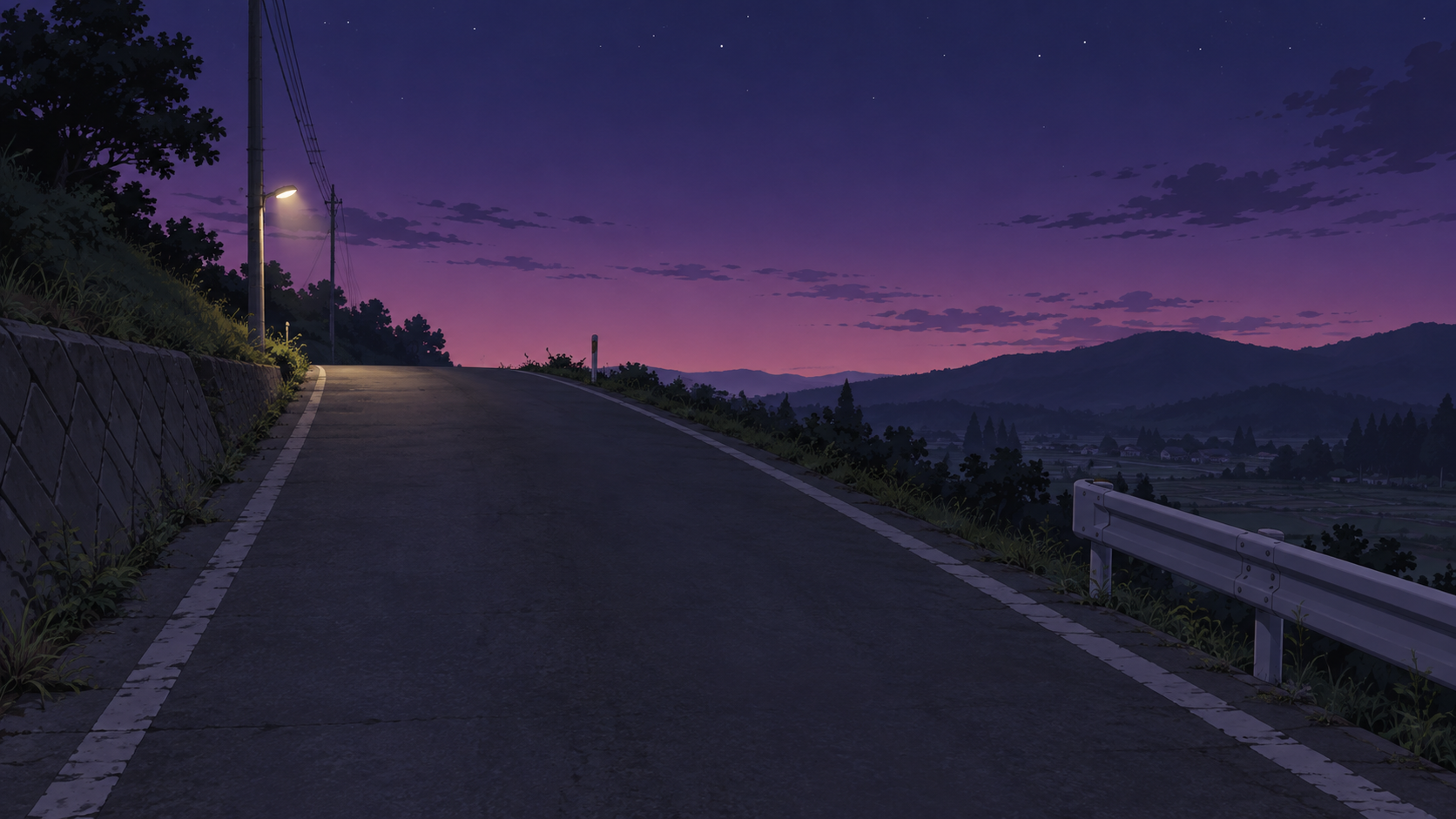
This version adapts the original rural-road scene for background-only generation. A related result from my work appears below. The edited prompt has not been confirmed to be identical to the prompt used for that image.
View background prompt
# Purpose
* background-only image, with no people or characters
* leave a quiet central area for a later text or image overlay

# Background
## Art Style
* modern anime style
* flat coloring and clean cel shading
* simple shadow shapes
* restrained surface detail and reduced painterly rendering

## Field Information
* a quiet uphill rural road at early night
* sparse countryside surroundings
* purple near the horizon, with the sky darkening toward the top
* one distant streetlight on the left

## Spatial Structure
* consistent perspective and object scale with distance
* clear foreground, midground, and background separation
* distant objects gradually lose contrast and saturation
* subtle distance haze

# Camera and Composition
* eye-level view looking along the uphill road
* moderate perspective
* keep the central area uncluttered
* sparse foreground objects

# Lighting
* soft ambient evening light from the sky
* exactly one visible artificial light source in the entire scene:
  the distant streetlight on the left
* the streetlight casts a small, restrained pool of light nearby
* shadows and reflections follow the stated lighting
* no additional lamps, spotlights, or decorative light sources
* restrained glow and highlights

# Color
* a controlled palette with purple near the horizon
* restrained saturation in distant scenery
* gentle contrast in the central overlay area

# Material Response
* the dry road and surrounding ground remain mostly matte
* subtle reflections consistent with the scene lighting

# Overall Direction
* calm, quiet rural atmosphere
* controlled environmental detail
* keep the open central area free of added decorations
What to adjust after generation
- Too much scenery: Specify where to reduce detail and which objects to omit.
- Extra lights: Restate the number and positions of visible light sources.
- Too much volume or shine: Describe the desired result, such as simple shading or matte surfaces.
- Unclear depth: Explain differences in scale, contrast, and saturation between near and far areas.
- Adding wind: Define its direction and strength, and which environmental elements respond.
I found it useful to describe the desired state first, then add short limits for features that repeatedly became excessive. You do not need every section in every prompt. Start with the relationships and limits that matter.
Chibi layouts
These notes focus on where multiple chibi characters go and the order in which they are noticed, rather than detailed proportions or style. In my work, prominent faces and silhouettes also made awkward placement stand out.
What is the focal point?
When characters, text, a logo, and props share the image, decide which element should be noticed first.
When characters are the focus:
View character-first prompt
# Priority
* characters are the primary focal point
* text remains secondary
* decorative elements remain supportive
* character silhouettes remain the strongest visual elements
When text is the focus:
View text-first prompt
# Priority
* text is the primary focal point
* characters function as supporting decoration
* text must be the first element the viewer notices
* character placement guides attention toward the text
Layouts by character count
These were useful starting points in my work, not fixed rules for every scene.
| Count | Positions | Intended reading order |
|---|---|---|
| 2 | A left, B right | A → B |
| 3 | A top, B lower left, C lower right | A → B → C |
| 4 | A upper left, B upper right, C lower left, D lower right | A → B → C → D |
Keep silhouettes from overlapping too much and identify the character to notice first. For four characters, start with a 2×2 layout or specify a diagonal flow suited to the scene.
A three-character layout written as a prompt:
View chibi layout prompt
# Layout
* three chibi characters in a triangular composition
* character A at the top
* character B at the lower left
* character C at the lower right
* keep each character silhouette clearly separated

# Reading Order
* character A should be noticed first
* the viewer's eye then moves to character B, then character C
* keep decorative elements secondary to the characters
What to adjust after generation
If the image is lively but lacks a focus, revisit priority before adding detail. Check who should be seen first, where the eye should go next, and whether text interrupts that flow.
Loading images from outside the platform (external images)
How it works
An external image is uploaded to a server and displayed using its hosted URL. The service storing the image can be different from the platform displaying it.
The flow is upload image → get its URL → output the URL in a supported image format → display the image.
Tags let you add rules for choosing an image. This example uses letters and numbers for convenience: letters distinguish outfits or situations, while numbers distinguish expressions or props. A tag is an identifier for selecting an image and is linked to its URL.
Image syntax
In an environment that supports Markdown images, use the following format. Replace this illustrative URL with the real image URL. Standard Markdown does not put quotation marks around the URL.

For example, let A mean an outdoor outfit and 01 mean a smile, and associate A01 with that image. The scene rules then only need to choose a code. Naming the file after the code is one way to organize things, not a requirement.
An example for the hardcore tinkerers
Outfit changes — combining scene state and expressions
Custom image-call registration is limited to Rplay / StoryEngine / RomanticPlay. This example uses an option that lets you disable certain features and register your own image-call format. That platform restriction applies to this option, not to the general practice of displaying an externally hosted image by URL.
This is a real usage example that selects an outfit from location, time, and sleep state, then adds an expression number to form an image identifier. On the platform I use, disabling certain features allows custom image-call registration; I added selection rules on top of it. The original outputs the registered (tag:) format rather than a direct external URL. The necessary settings depend on the platform.
The key is not to select a new outfit every sentence. Store the current outfit code, ENV, in the HUD's 🧷 situation-summary line, and reconsider it only at a state boundary such as going out, returning home, or going to bed. NUM identifies an expression or prop image.
| Outfit code | Condition |
|---|---|
| A | Outside the residence; takes priority regardless of time |
| C | Indoors and in bed: sleeping, drifting off, or just awake |
| D | Indoors, awake, at dusk, night, or dawn |
| B | Indoors, awake, in the morning, at noon, or in the afternoon |
Evaluate A → C → D → B, stopping at the first match. These are the original instructions supplied from my work, not executable C# code. The Korean HUD label inside the prompt is preserved from the original.
View the full outfit-change rules
2. **Image Cue Rules:**
   - All image output via `(tag:)` only. Direct URL embedding is strictly forbidden.
   - Format: `(tag: {ENV}{NUM})` — e.g. `(tag: A3)`
   - Append at the end of EVERY paragraph and dialogue block.
   - **ENV Resolution (cascade — evaluate top-down, first match locks):**
     1. Scene is OUTSIDE the residence                         → A  (holds for any TIME_CTX)
     2. INSIDE + in bed (sleeping / drifting off / just woke)  → C  (frilled sleep set)
     3. INSIDE + awake + TIME_CTX ∈ {DUSK, NIGHT, DAWN}        → D  (cozy hooded loungewear)
     4. INSIDE + awake + TIME_CTX ∈ {MORNING, NOON, AFTERNOON} → B  (daytime home casual)

   - **TIME_CTX gate:**
     • C (sleep) is bound to the in-bed state, valid at any tick but realistically
       only fires around {DUSK, NIGHT, DAWN}.
     • D (lounge) is ELIGIBLE ONLY when awake at {DUSK, NIGHT, DAWN}.
     • B never fires at {NIGHT, DAWN} unless the day has clearly restarted.
     • A overrides time entirely — outdoors is always A.

   - **ENV Persistence (anti-flicker · HUD-anchored):**
     ENV is scene state, NOT a per-line choice, and its standing value
     is STORED in the HUD (상황 요약 line, 🧷).

     Each turn, resolve ENV in this order:
       (1) READ the previous 🧷 value from the most recent HUD. This is
           the current ENV unless something below overrides it.
       (2) Check for a boundary crossing since that value was written:
             leaves / enters residence        → A ↔ (B|C|D)
             gets into bed                     → C
             gets out of bed, still cozy       → D
             new day starts / dresses          → B (or A if heading out)
           Only a LOCATION boundary or a TIME_CTX advance that crosses one
           of the cascade lines may change ENV.
       (3) If a boundary was crossed, re-run the top-down cascade to get
           the new letter. If NOT, KEEP the previous 🧷 value verbatim.
       (4) Write the resulting letter back to 🧷 in this turn's HUD.

     Within a single response spanning multiple paragraphs, ENV does NOT
     change unless the prose itself crosses a boundary; do not re-evaluate
     per paragraph. When ambiguous at any step, KEEP the previous 🧷 value.

     The HUD 🧷 is the single source of truth for current ENV. If prose and
     🧷 ever disagree, 🧷 wins and the prose is treated as the error.

3. **Tag Index:**
   EMOTION:
   [Daily Tag Codes]
01_Smile|02_light_smile|03_angry|04_pout|05_hurt|06_disappointed|07_sad|08_fear|09_irritated|10_sulk|11_contempt|12_frustrated|13_overwhelmed|14_unhinged|15_expressionless

   PROP:
17_eating_icecream_solo...

4. **Dialogue Rule:**
   - Format: `[Character Name]: "Dialogue" (tag: {ENV}{NUM})`
   - Narrative paragraphs for actions/thoughts ONLY. `(tag: {ENV}{NUM})`
Reuse the selection rules with external image output
The original requires output such as (tag: A3). To output an external image URL directly, keep the outfit, expression, and HUD persistence rules, but change the final output to Markdown image syntax.
View the image selection flow
Location, time, sleep state → choose outfit code ENV
Expression or prop → choose number NUM
ENV + NUM → select the associated image URL
Output 
If files are organized as A01.png, for example, put the actual URL associated with A01 inside . The letters and numbers are your own convention, so keep the codes, filenames, and URLs consistent.
Replace the original “Direct URL embedding is strictly forbidden” instruction and the (tag:) format accordingly. Also update the output format in the final Dialogue Rule so the instructions do not conflict. Separating image selection from display syntax makes the method easier to adapt.
The original example uses A3, while the index uses a number such as 03_angry. Choose A3 or A03 to match the registered keys. Since there is no previous HUD on the first turn, initialize 🧷 for the opening scene.
Hosting services
Services are grouped by whether they allow NSFW image hosting. Support for external image display and permission to upload NSFW content are separate questions.
This list is a working draft based on usage information supplied by the person behind these notes (2026-09-13). Not every entry has been checked against the latest official policy. “Allowed” does not mean all kinds of NSFW content are allowed without limits.
NSFW images allowed
| Service | Reported status | Notes |
|---|---|---|
Catbox (catbox.moe) |
Allowed | Different from Litterbox; see temporary-storage note below |
Image Chest (imgchest.com) |
Allowed | Detailed content and external-display conditions to be checked |
IGX (igx.kr) |
Allowed — reported by 먹물치킨 | Reported to be free, with a registration process required. The official page advertises alpha testing and applications (checked September 17, 2026). The free usage limits and detailed NSFW conditions could not be confirmed from the public information. |
ImgBB (imgbb.com) |
Partly allowed | NSFW usage examples have been observed; exact permitted scope to be checked |
Postimages (postimages.org) |
Partly allowed | Boundary between permitted and prohibited content to be checked |
Imgbox (imgbox.com) |
Allowed | Detailed content and external-display conditions to be checked |
Pixhost (pixhost.to) |
Allowed | Detailed content and external-display conditions to be checked |
Freeimage.host (freeimage.host) |
Allowed · possible public exposure | Reported possibility of uploaded images appearing elsewhere; exposure routes and visibility settings to be checked |
Upload.cc (upload.cc) |
Allowed | Detailed content and external-display conditions to be checked |
Imgpile (imgpile.com) |
Allowed | Detailed content and external-display conditions to be checked |
| Cloudflare R2 | Allowed | Personally used; this classification concerns R2 object storage. See notes below |
ITIMG.KR (itimg.kr) |
Allowed | Official permission reported as confirmed; details below |
Do not confuse Catbox with Litterbox
According to the usage information supplied for these notes, litterbox.catbox.moe is temporary storage. Do not use it for story-chat image URLs that need to remain available. The exact retention periods will be added after checking the official information.
ITIMG.KR — image hosting for AI and story chats
ITIMG.KR is an AI-chat image hosting service operated by 문커뮤니티 (Moon Community). It uses short image URLs. Paid plans support dynamic SVGs whose text and shapes change with values in the URL. Public information checked: 2026-09-13. Official service information
| Plan | Storage | Regular monthly price | Currently advertised monthly subscription price |
|---|---|---|---|
| Free | 10MB | Free | — |
| Pro | 5GB | KRW 11,000 | KRW 8,800 |
| Premium | 10GB | KRW 22,000 | KRW 17,600 |
The official pricing table advertises unlimited traffic and a 20% monthly subscription discount. The same page still has a payment notice showing KRW 11,000 per month, so check the amount actually applied at checkout. Official pricing
Short URL structure
These are supplied path examples, not links whose image contents were opened and verified.
https://itimg.kr/27/cb1.webp
https://itimg.kr/27/a/tr.png
                   └ folder / filename
According to my usage notes, 27 is a storage identifier based on signup order. Creating a folder adds its name before the filename. The official introduction also shows a short URL with a numeric path followed by a filename. Official usage example
Payments and international support
Based on my experience using the service and asking about payment, paid plans require a Korean-issued card. International payment support is planned; timing is undecided. This reflects a reply that I would be notified when international support becomes available. A public schedule and detailed payment-method conditions have not been confirmed. This does not mean a Korean card is required to sign up for the free plan.
Additional notes from use
- I observed WebP conversion during my last use. Current automatic-conversion conditions and original-file retention have not been confirmed.
- According to the information I supplied, the service was started by the operator of LunaTalk, and SVG creation assistance is available to paid users. The public page confirms dynamic SVG features for paid plans; the scope and conditions of individual SVG creation assistance still need checking.
Why it is in this category
NSFW image hosting is allowed. This reflects information I supplied after confirming official permission (2026-09-13). Refer to the service terms for detailed upload restrictions.
Cloudflare R2 — upload files and use their URLs
This is an external image store I use myself. When internal images occasionally failed to load in a story chat's opening message, I used URLs for images uploaded to R2. The NSFW classification is based on supplied usage information; the official documentation checks below concern pricing and setup.
Free allowance
As checked on 2026-09-13, Standard storage includes 10 GB-month of free storage each month: roughly the amount used by keeping 10GB stored for a full month. It also includes one million Class A operations and ten million Class B operations per month, with no Internet egress fees. Storage or operation usage above the allowance can incur charges. This free allowance does not apply to Infrequent Access storage. Official R2 pricing
I registered and verified a payment card when getting started. In actual use, I have not experienced noticeable delays.
Try it with a public URL
- Create an R2 bucket, a storage container for your files.
- Upload the images you want to use.
- Open the bucket's
Settings→Public Development URL→Enable. - Read the public-access notice and enable it to get an
r2.devURL. This makes files in the bucket accessible over the Internet. - Append the image path and filename to that URL.
https://pub-example-id.r2.dev/folder/A01.webp
This is an illustrative URL. Replace it with your actual bucket URL and uploaded file path.
Officially, r2.dev is for development and testing, with request rate limits. Cloudflare directs production use toward a custom domain. A custom domain provides your preferred address and features such as caching. I have not used custom-domain setup myself. Public buckets and custom domains
When to change CORS Policy
Distinguish simply displaying an image from having page code read or process a file from another origin. Plain image display usually needs no extra CORS configuration, but even images may need it when read with JavaScript or when pixels are extracted from a canvas. The distinction is how you fetch and use the file, rather than whether it is an image. When necessary, set the allowed sites and request methods under the bucket's Settings → CORS Policy. R2 CORS documentation
NSFW images not allowed
| Service | Reported status | Notes |
|---|---|---|
| Imgur | Not allowed | Exact scope of the latest official restrictions to be checked |
| GitHub | Not allowed | Based on supplied usage information; excluded as an NSFW image host |
NSFW status unclear
No services are currently listed here. Services whose permitted scope is unclear will be recorded separately in this category.
An observation from Japanese usage examples
In the Japanese usage examples I encountered, Catbox + Twitter (X) + a personal server appeared frequently. This is a personal observation, not a survey of overall usage. It is not a recommendation to use Twitter (X) for long-term image hosting or a guarantee of reliability. Personal servers also depend on their actual storage and operating arrangements.